
In the previous topic, we managed to create a custom map from a non-geographical image in flutter_map. However, this process relies on a running external static server.
In this guide, we will build a robust offline mapping solution for Flutter. Instead of relying on external tile servers, we will bundle our map tiles into a single ZIP file, extract them on the first run, and spin up a lightweight internal HTTP server to feed the tiles to our map.
This is a continuation from the previous topic Creating a Custom Map from Images in Flutter. This tutorial assums that you have already setup a custom image in flutter_map. If you need to create the project, feel free to check the post.
The Tech Stack#
- flutter_map: The core mapping engine.
- flutter_map_rastercoords: Handles coordinate translation (Pixels <-> LatLng) for custom images.
- shelf & shelf_static: Runs a pure Dart HTTP server inside your app.
- archive: Handles unzipping the assets.
- path_provider: Finds the correct storage location on the device.
Steps to Implement#
Step 1: Add Dependencies#
Add the following to your pubspec.yaml.
dependencies:
  flutter:
    sdk: flutter
  flutter_map: ^8.1.1
  latlong2: ^0.9.1
  flutter_map_rastercoords: ^0.0.1
  provider: ^6.1.5
  shelf: ^1.4.2
  shelf_static: ^1.1.3
  path_provider: ^2.1.5
  archive: ^4.0.7
Step 2: Prepare Your Assets#
- Generate your map tiles (using tools like
gdal2tilesormaptiler). You should have a structure likefolder/z/x/y.png. - Zip this folder content into
map.zip.- Note: Ensure the zip structure is flat or you account for the root folder. For this guide, we assume the zip contains the
zfolders at the root.
- Note: Ensure the zip structure is flat or you account for the root folder. For this guide, we assume the zip contains the
- Place
map.zipin your Flutter project underassets/. - Update
pubspec.yaml:
flutter:
  assets:
    - assets/map.zip
Step 3: Create the Map Server Service#
This is the brain of our operation. It handles two jobs: Extraction and Serving.
Create a file named local_server.dart.
| |
Step 4: Update the Map UI#
In our main main.dart instantiate the local web server we’ve just created:
| |
After updating you should be able to run the custom image map locally.
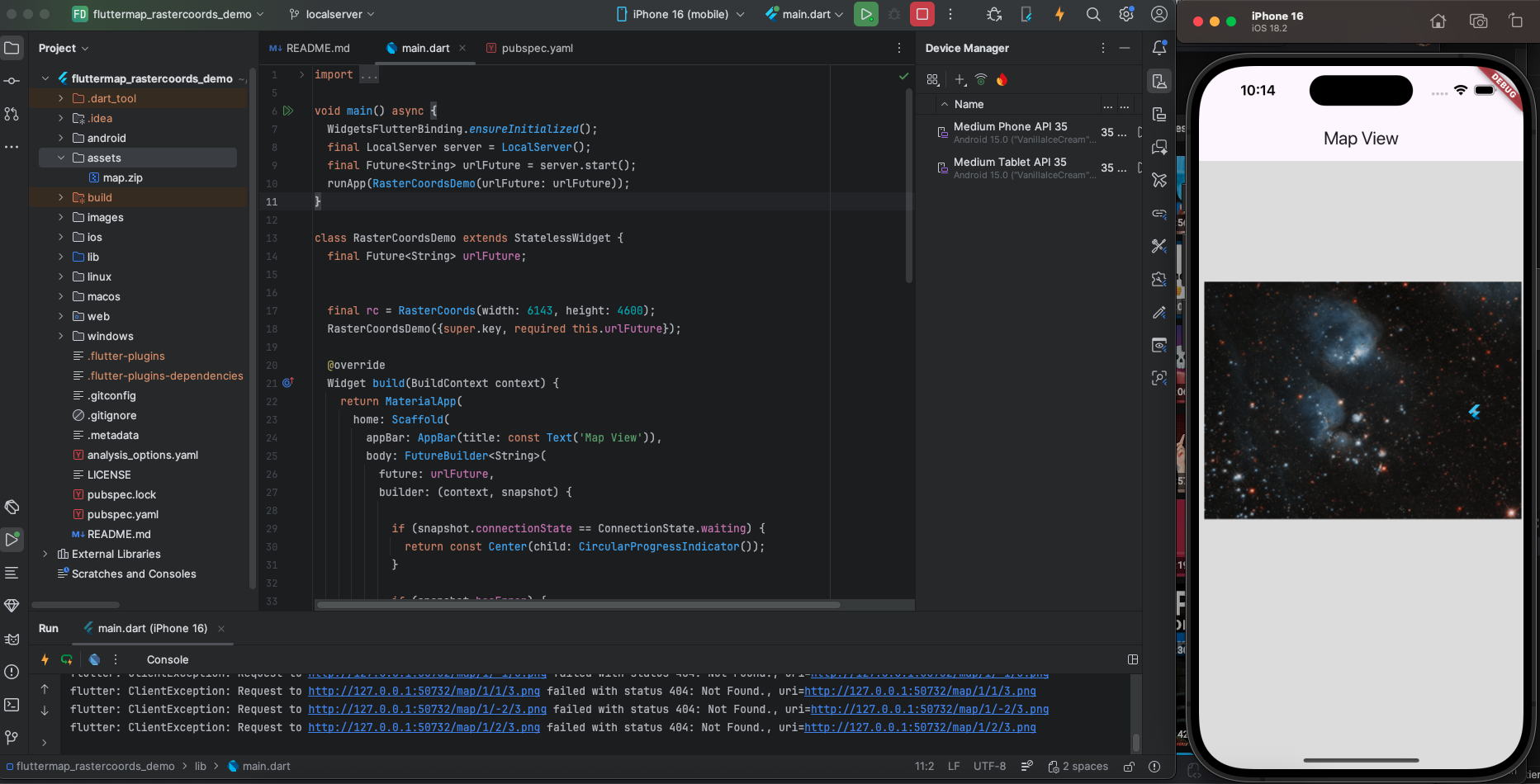
Though we are able to solve the issue about running maps offline, there are some issues you still need to consider before implementing this solution:
- Storage: Be mindful of the user’s storage. If your unzipped map is 500MB, you are taking up that space permanently in the user’s storage.
- Cleanup: In a production app, you might want to add version checking. If you update the app with
tiles_v2.zip, yourinitializemethod should detect the version change, delete the old folder, and unzip the new one.
Conclusion#
In summary, building a locally hosted map in Flutter is a smart way to handle high-resolution, custom imagery without relying on an internet connection. By bundling your tiles in a ZIP file and serving them through a local internal server, you ensure the app remains fast and responsive while keeping the installation size manageable. With the added layer of version control, your app can seamlessly update its map data whenever you release new content, providing a smooth and professional experience for the user. Whether you are building a mall directory, a game world, or an offline site plan, this method gives you full control over your map’s performance and coordinate system.
The sample code used in this tutorial is available at the Github Repository: Flutter Map RasterCoords demo under the localserver branch